What Is Image DPI and Why Does It Matter?
What DPI really means, how it relates to pixels and print size, why 300 DPI is requested so often, and why changing the DPI number alone does not make an image sharper.
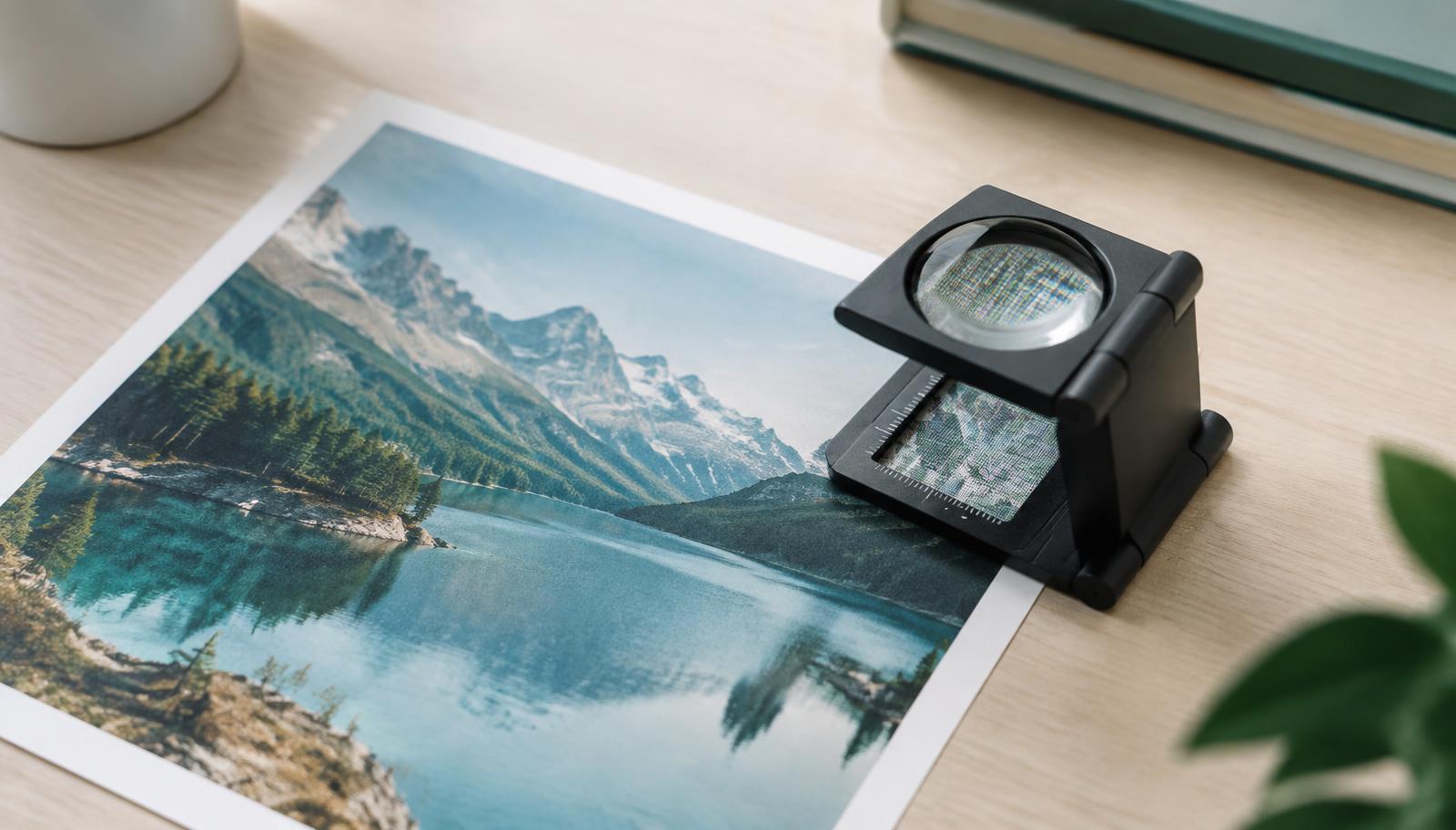
You have an image that looks perfectly sharp on your screen, but then someone asks whether it is “300 DPI.” Suddenly, a simple image file comes with a question that is surprisingly difficult to answer.
DPI is commonly mentioned when preparing photographs, artwork, documents, and other images for printing. It is also frequently misunderstood. Changing an image from 72 DPI to 300 DPI does not automatically make it sharper, and a low DPI number does not necessarily mean that the image itself is low quality.
The key is understanding the relationship between DPI, pixels, and the physical size at which an image will be printed.
What does DPI mean?
DPI stands for dots per inch. In printing, it describes how densely dots are placed within one inch of a printed image.
When talking about digital image files, DPI is also commonly used to describe how the pixels in an image should relate to its physical print size. Technically, PPI, or pixels per inch, is often the more accurate term when discussing a digital image, while DPI relates to the output of a printer.
In everyday use, however, DPI has become the term many applications, websites, and print services use when discussing image resolution for printing.
That is why you may be asked to provide an image at 300 DPI even though the image itself is made up of pixels rather than printer dots.
Pixels are an important part of the picture
Every raster image has fixed pixel dimensions.
A photograph might be:
3000 × 2400 pixels
Those dimensions tell you how much actual pixel information the image contains.
DPI does not tell you how many pixels are in the file. Instead, it helps determine how those pixels relate to physical print dimensions.
For example, take that 3000 × 2400 pixel image.
At 300 DPI:
3000 ÷ 300 = 10 inches
2400 ÷ 300 = 8 inches
So the image could be printed at approximately 10 × 8 inches at 300 DPI.
Use the same image at 150 DPI and the calculation changes:
3000 ÷ 150 = 20 inches
2400 ÷ 150 = 16 inches
The image now has an estimated print size of 20 × 16 inches.
Nothing happened to the original 3000 × 2400 pixels. The difference is how densely those pixels are being used across the printed area.
Why is 300 DPI mentioned so often?
You will frequently encounter 300 DPI when preparing images for professional printing.
At normal viewing distances, a sufficiently high pixel density can produce fine detail and smooth-looking photographs and graphics. For many print applications, 300 DPI is therefore a commonly requested target.
It is not a universal rule.
The appropriate resolution depends on factors including the type of printing, the material being printed, the size of the finished product, and how far away it will normally be viewed.
A photograph in a book and a large poster viewed from several metres away do not necessarily need the same pixel density.
This is why simply saying that every image “needs to be 300 DPI” can be misleading.
Does changing 72 DPI to 300 DPI improve an image?
This is one of the biggest sources of confusion around DPI.
Suppose you have a 1200 × 1200 pixel image stored with a resolution setting of 72 DPI.
Changing its DPI metadata to 300 DPI while leaving the pixel dimensions unchanged still gives you a:
1200 × 1200 pixel image.
No new photographic detail has appeared. The file has not suddenly gained millions of additional pixels.
What changes is the intended relationship between those pixels and physical print dimensions.
At 72 DPI, 1200 pixels correspond to about 16.7 inches.
At 300 DPI, the same 1200 pixels correspond to just 4 inches.
So changing the DPI setting alone can change the intended print size, but it does not magically increase image quality.
That distinction is important when a printer, publisher, designer, or upload service requests a particular DPI.
DPI and image resizing are not the same thing
Changing DPI and resizing an image are two different operations.
Imagine you have an image that is 2400 × 1800 pixels.
If you change only its DPI setting, it can remain exactly 2400 × 1800 pixels.
If you resize it to 4800 × 3600 pixels, however, the software must create additional pixels. This process is known as resampling.
Resampling can be useful, but creating additional pixels does not reveal detail that was never captured in the original image. Software has to estimate the new pixel information from the existing image.
Similarly, reducing an image's pixel dimensions removes pixel information.
This is why it helps to check an image's actual dimensions before worrying about the DPI number alone.
How can you calculate print size from DPI?
The basic calculation is straightforward:
Print width in inches = pixel width ÷ DPI
Print height in inches = pixel height ÷ DPI
Consider an image measuring 3600 × 2400 pixels.
At 300 DPI, its approximate print dimensions are:
3600 ÷ 300 = 12 inches
2400 ÷ 300 = 8 inches
That gives you a 12 × 8 inch print.
At 200 DPI, the same image works out to:
3600 ÷ 200 = 18 inches
2400 ÷ 200 = 12 inches
Now the estimated print size is 18 × 12 inches.
This relationship between pixels, DPI, and physical dimensions is much more useful than looking at the DPI number by itself.
Why might an image not have a DPI value?
Not every image needs meaningful print-resolution information.
An image created specifically for a website, social media post, app, or other screen-based use may be designed around pixel dimensions alone. Its physical dimensions in inches or centimetres may simply not matter.
Depending on the image format and how the file was created, resolution information can also be missing, stored differently, or changed when an image is processed by another application.
If a DPI checker cannot find reliable resolution metadata, that does not mean the image is broken.
Its pixel dimensions are still there.
You can use those dimensions to determine an appropriate print size at a chosen resolution.
When should you check an image's DPI?
DPI becomes particularly useful when an image is moving from a screen into something with physical dimensions.
You might need to check it before preparing:
- A photograph for printing
- Artwork for a book
- A brochure or flyer
- A poster
- Printed marketing material
- A document containing high-resolution images
- Artwork for a print-on-demand service
In these situations, both the image's pixel dimensions and the required physical print size matter.
If you only plan to display an image on a website or screen, its pixel dimensions are generally much more relevant than whether its metadata says 72, 96, or 300 DPI.
Checking and changing an image's DPI
Before changing anything, it is useful to know three pieces of information:
The image's pixel dimensions, its current DPI information, and the physical size at which you intend to print it.
The IntuWebTools Image DPI Checker & Changer can be used to inspect this information and calculate the approximate print dimensions at different DPI settings.
If you need to change the DPI metadata, you can set a new value while keeping the original pixel dimensions unchanged.
If the actual width and height in pixels also need to change, that is a different task and is better handled with the Image Resizer.
The important point is not to chase a particular DPI number without considering the pixels behind it.
A 300 DPI label by itself does not guarantee a detailed image. What ultimately matters is whether the image contains enough pixel information for the size and purpose you have in mind.