What Happens When You Resize an Image? A Simple Guide to Pixels and Image Quality
What really happens to the pixels when you make an image smaller or larger, why enlarged images go blurry, and how resizing differs from cropping, compressing and changing DPI.
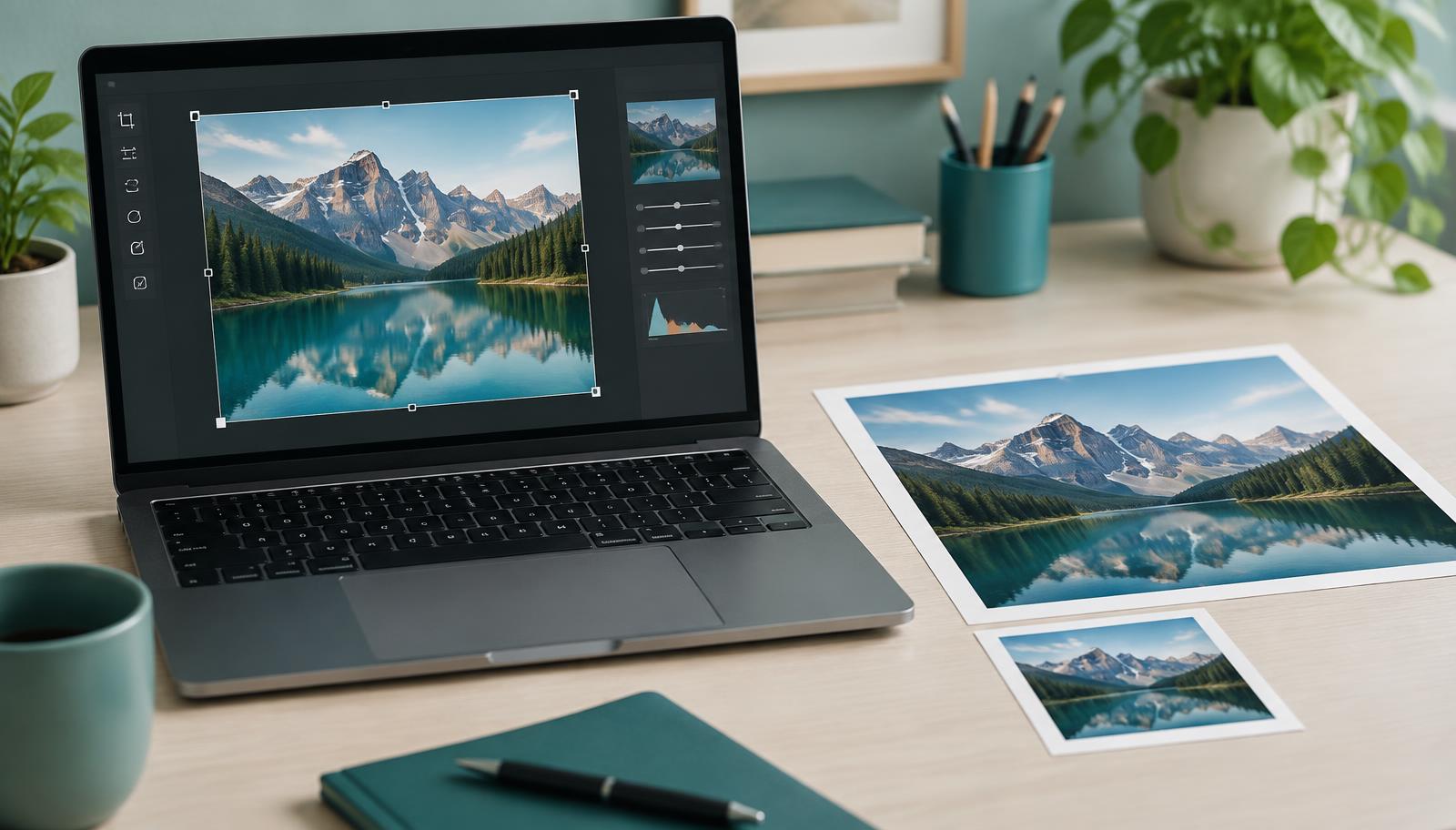
Resizing an image sounds straightforward. You start with a large photograph, enter a smaller width and height, and save the result.
But what actually happens to the image?
If you have ever resized a photo and found that it looked blurry, stretched, pixelated, or unexpectedly different in file size, the answer usually comes down to pixels and how the resizing process handles them.
Understanding what happens when an image is resized can help you choose better dimensions and avoid unnecessarily reducing image quality.
What does resizing an image mean?
A digital raster image is made up of pixels arranged in a grid.
An image that measures:
4000 × 3000 pixels
contains 4000 pixels across its width and 3000 pixels down its height. That works out to 12 million pixels in total.
When you resize that image to:
2000 × 1500 pixels
you are changing the number of pixels used to represent the image.
The new version contains only 3 million pixels.
The photograph may still look almost identical when displayed at a suitable size, but the resized file contains considerably less pixel information than the original.
What happens when you make an image smaller?
Reducing an image's pixel dimensions means some of its original pixel information has to be removed.
The resizing software cannot simply hide the unwanted pixels. It needs to calculate how the information from the larger image should be represented using a smaller number of pixels.
This process is known as resampling.
For example, reducing a 4000 × 3000 image to 1000 × 750 means the new image has far fewer pixels available to represent the same photograph.
A good resizing method can produce a result that still looks sharp and detailed at its new size, but information has nevertheless been discarded.
This is one reason it is sensible to keep the original image if you might need the full-resolution version later.
Does making an image smaller reduce its file size?
Often, yes.
An image with smaller pixel dimensions generally requires less data to store than a larger version of the same image.
However, pixel dimensions are not the only thing that determines file size.
The image format, compression settings, amount of detail in the picture, transparency, colour information, and metadata can all affect how large the final file is.
This means resizing a photograph from 4000 × 3000 to 2000 × 1500 will often produce a smaller file, but you cannot predict the exact reduction from the dimensions alone.
If your only goal is to reduce file size while keeping the existing dimensions, image compression may be more appropriate than resizing.
What happens when you make an image larger?
Enlarging an image presents a different problem.
Suppose an image is only:
800 × 600 pixels
and you resize it to:
3200 × 2400 pixels.
The new image needs many more pixels than the original contains.
The software therefore has to create additional pixel information based on the pixels that are already there. Different resizing methods use different techniques to estimate what those new pixels should look like.
What they cannot do is recover genuine detail that was never captured in the original file.
The resulting image may have larger pixel dimensions, but that does not necessarily mean it contains more real detail.
Why can enlarged images look blurry?
Imagine a small photograph containing a distant person's face.
If there are only a limited number of pixels describing that face, enlarging the image gives the software more pixels to work with, but it does not provide new information about the person's features.
The software has to estimate how the additional pixels should look.
As the enlargement becomes more extreme, the lack of original detail becomes increasingly noticeable. The image may begin to appear soft, blurry, or pixelated.
Modern image processing can sometimes make enlargements look better, but there is still an important distinction between generating additional pixels and capturing additional original detail.
Starting with an image that has suitable pixel dimensions remains preferable whenever possible.
Why does aspect ratio matter when resizing?
The aspect ratio describes the proportional relationship between an image's width and height.
A 4000 × 3000 image has an aspect ratio of 4:3.
If you reduce it proportionally to:
2000 × 1500
the relationship remains the same.
But if you resize it to:
2000 × 1000
without cropping, the proportions have changed.
The image may become stretched or squashed because the width and height no longer maintain their original relationship.
This is why image resizing tools commonly include an option to lock or maintain the aspect ratio.
With the aspect ratio locked, changing the width automatically calculates the corresponding height, or vice versa.
Resizing and cropping are different
Resizing and cropping are sometimes confused, but they solve different problems.
Resizing changes the dimensions of the entire image.
Cropping removes part of the image.
Suppose you have a landscape photograph measuring 3000 × 2000 pixels.
If you resize it to 1500 × 1000, the complete scene remains visible, just at smaller pixel dimensions.
If you crop the photograph, you might remove areas from the left and right sides while keeping the remaining content at its existing scale.
Cropping is particularly useful when you need to change the composition or create a specific aspect ratio without stretching the image.
In some situations, you may need to crop first and resize afterwards.
Resizing and compressing are also different
Another common source of confusion is the difference between resizing and compression.
Resizing changes the image's pixel dimensions.
Compression changes how efficiently the image data is stored.
You might have a 3000 × 2000 JPEG and compress it while keeping it at exactly 3000 × 2000 pixels.
Alternatively, you could resize it to 1500 × 1000 pixels without aggressively compressing it.
Both operations can reduce file size, but they do so in different ways.
If an image is physically larger in pixels than you need, resizing can make sense.
If the dimensions are already appropriate but the file is still too large, compression may be the better option.
Sometimes a combination of both produces the most practical result.
Does resizing change DPI?
Pixel dimensions and DPI are related to different aspects of an image.
Resizing an image changes its width and height in pixels when resampling is involved.
DPI, or the related PPI measurement used for digital images, describes how those pixels relate to a physical print size.
Changing an image from 4000 × 3000 pixels to 2000 × 1500 pixels changes the amount of pixel information available.
Changing only a DPI value does not necessarily change the pixel dimensions at all.
This distinction becomes particularly important when preparing images for printing.
What size should you resize an image to?
There is no single correct image size.
The appropriate dimensions depend on what you intend to do with the image.
An image being uploaded to a website may not need the enormous pixel dimensions produced by a modern camera.
A photograph intended for a large print may need considerably more pixel information.
A profile picture, product image, presentation graphic, website banner, and printed photograph can all have very different requirements.
Instead of automatically making an image as small as possible, determine where it will be used and choose dimensions appropriate for that purpose.
Should you keep the original image?
If the image matters to you, keeping the original is usually a good idea.
When an image is reduced in size, pixel information is discarded. Saving only the smaller version means that information is no longer available if you later need a larger copy.
Repeatedly editing and saving certain image formats can also affect quality depending on the format and settings being used.
Keeping an untouched original gives you a reliable source file that you can return to when you need a different version.
Resizing an image without unnecessary distortion
Before resizing an image, check its current pixel dimensions and decide what dimensions you actually need.
The IntuWebTools Image Resizer can be used to change an image's width and height while maintaining its proportions when required.