What Is a BMP File? Understanding the Bitmap Image Format
A practical look at BMP files: what bitmap images are, why BMP files can be so large, where you still encounter them, and what to do when you need a smaller or more shareable image.
If you have ever downloaded an image, opened a folder of old files, or received a photo from a colleague and noticed the file ended in .bmp, you may have wondered what exactly you were looking at. BMP files are not as common online as JPG or PNG, but they have been around for decades and still turn up in some surprisingly normal situations. Understanding what a BMP file is makes it much easier to decide what to do with one.
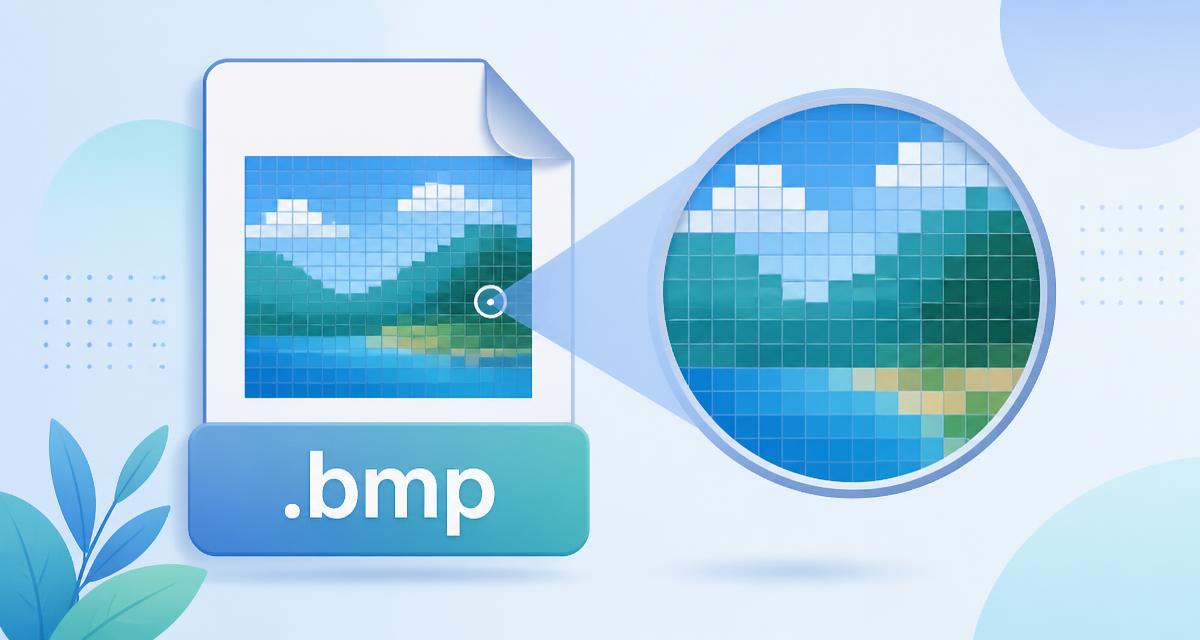
BMP stands for Bitmap Image File. The word "bitmap" is the important part. A bitmap image is simply an image made up of a grid of tiny coloured dots called pixels. When you zoom in far enough on any digital photograph, you eventually see this grid. Each square holds a colour value, and when all of those squares are displayed together, your brain sees a picture. A BMP file is one way of storing that grid of pixels on disk.
BMP is a raster image format, which means it stores an image as a fixed set of pixels rather than as shapes, lines, or instructions. JPG, PNG, WebP, and GIF all work the same way at the most basic level. The difference between them is how they package the pixel data inside the file. BMP tends to be the most direct and least complicated of the bunch, which is both its strength and its weakness.
A brief history of why BMP exists
BMP was created by Microsoft in the 1980s and has been part of Windows since the early days of personal computing. Microsoft wanted a simple image format that Windows programs could read and write without complex decoding libraries. Because BMP was built directly into Windows, it became the default choice for wallpapers, icons, splash screens, and software graphics.
That Windows connection is the main reason BMP files are still around. Any modern Windows machine can open a BMP without installing extra software, and many older applications, embedded systems, and technical tools still expect or produce BMP files because the format is predictable and easy to handle.
What is actually inside a .bmp file?
A BMP file is basically a short description followed by a long list of pixel colours. When a program opens the file, it reads a small header that tells it how wide and tall the image is, how many bits are used to describe each pixel's colour, and where the actual pixel data begins. After that header, the rest of the file contains the colour information for every pixel in the image.
The colour depth tells you how much detail each pixel can hold. A 24-bit BMP uses twenty-four bits per pixel, which is enough to represent roughly sixteen million colours. A 32-bit BMP adds an extra eight bits for transparency information. Older BMP files sometimes used 8-bit or 16-bit colour, which produced smaller files but fewer colours.
Think of it like a very detailed paint-by-numbers canvas. The header says, "This canvas is 1,000 squares wide and 800 squares tall, and each square can be one of sixteen million colours." The rest of the file is a long list telling the program exactly which colour belongs in each square. That directness is what makes BMP reliable, but it is also why BMP files can become so large.
Why BMP files are often much larger than JPG or PNG
The most noticeable thing about a BMP file is its size. A photograph saved as a BMP is often several times larger than the same photograph saved as a JPG, and usually larger than a PNG as well. The reason is compression, or in many cases, the lack of it.
Compression is the process of finding patterns in data and describing them more efficiently. A compressed JPG might say, "the next five hundred pixels are nearly the same shade of blue," and store that as a single instruction. A typical BMP stores all five hundred colour values individually. The visual result on screen can be essentially identical, but the BMP carries far more raw data.
Here is a simple real-world example. Imagine a 3000x2000 pixel photograph, which is a common size for a modern camera or phone. Saved as a high-quality JPG, that image might be around 2 MB. Saved as a 24-bit BMP with no compression, the same image could easily be 17 MB or more. The picture looks the same, but the BMP takes up roughly eight times as much storage space.
It is important to be accurate: not every BMP file is completely uncompressed. Some BMP variants do support compression, including a form of run-length encoding. However, in everyday use, the vast majority of BMP files you will encounter are uncompressed or only lightly compressed. That is why they grow so quickly, especially for photographs and detailed images.
Where people still encounter BMP files
BMP is not the format you would choose for a modern website or social media post, but it still appears in several specific places.
You are most likely to see BMP files in Windows software. Some Windows programs still use BMP for icons, splash screens, or internal graphics because the format is built into the operating system. Older applications and legacy games often store textures or interface elements as BMP files. Technical or specialised software, such as scientific instruments and embedded devices, sometimes output BMP because the simple structure makes it easy to read and write programmatically.
You might also receive a BMP file from older software, a specific scanner, or a Windows-based tool that defaults to BMP output. In those cases, the file is large because that is how BMP was designed to work.
The practical downsides of large BMP files
The main problem with BMP files today is convenience. A folder of BMP photographs can quickly consume hundreds of megabytes or gigabytes. Uploading them to a website takes longer, emailing them runs into attachment limits, and backing them up uses more bandwidth and cloud storage.
For websites, large images mean slower page loads, which affects visitors on slower connections or mobile data. For everyday sharing, BMP is simply not as practical as JPG, PNG, or WebP. Even storing BMP files locally becomes annoying because they take up far more disk space than necessary for the same visual result.
What to do if you have a BMP file
If you have a BMP file and you want to keep it, there is nothing wrong with that. BMP is a perfectly valid format, and it preserves the original pixel data without the lossy artefacts that JPG can introduce. But if the file is too large to email, upload, or store comfortably, converting it to another format is the simplest solution.
Converting a BMP to JPG is a good choice for photographs because JPG is designed to compress complex, detailed images into much smaller files. Converting a BMP to PNG is a better choice for graphics with sharp edges, text, or transparency, because PNG preserves those details without introducing JPG-style blockiness. Converting a BMP to WebP can produce even smaller files for web use, though not every program supports WebP yet.
The process is straightforward: you open the BMP in an image converter, choose the output format, and save the new file. An Image Converter can handle this without needing to install anything, which is useful if you only need to convert files occasionally.
Converting is not the same as compressing
It is worth distinguishing between converting a file and compressing it. Converting changes the file format itself, which usually means switching to a format that stores the same image more efficiently. Compressing reduces the amount of data needed to store the image, but it does not necessarily change the format.
Because BMP traditionally stores data with little or no compression, simply compressing a BMP file, for example by putting it inside a ZIP archive, often does not shrink it as dramatically as converting it to JPG or PNG. If your goal is a smaller image file, converting is usually the better approach. Once the image is in a more suitable format, an Image Compressor can reduce the file size further by adjusting the quality settings.
When BMP still makes sense
Despite its size, BMP is not obsolete. Its simplicity makes it useful anywhere a program needs raw, predictable pixel data without complex decoding. If you are writing software that manipulates images directly, working with an embedded device, or dealing with a legacy Windows application, BMP can be the easiest format to work with. It also avoids the lossy compression artefacts that can appear in low-quality JPGs, so it is a reasonable choice when you need to preserve exact pixel values.
For most everyday tasks, sharing, websites, and email, a smaller modern format will be far more practical.
Making sense of BMP
A BMP file is a straightforward way of storing a grid of pixels. It was built for a world where simplicity mattered more than file size, and that simplicity is why it has survived for so long. The trade-off is that BMP files are usually much larger than modern alternatives, which makes them awkward for email, web uploads, and cloud storage.
If you come across a .bmp file that is too large to use comfortably, converting it to JPG, PNG, or WebP will almost always solve the problem. The result will usually look the same while taking up a fraction of the space. BMP may be old-fashioned, but understanding it helps you make better decisions about the images you work with.